# Tutorial: Consuming REST APIs

**URL:** https://community.linx.software/community/t/tutorial-consuming-rest-apis/484
**Category:** Tutorial
**Created:** [November 17, 2020, 1:20pm UTC](https://community.linx.software/community/t/tutorial-consuming-rest-apis/484 "2020-11-17T13:20:46Z")
**Posts on this page:** 5
**Page:** 1

<div class="post-metadata">

### Author: ![ronan](https://community.linx.software/community/user_avatar/community.linx.software/ronan/32/433_2.png) [@ronan](https://community.linx.software/community/u/ronan)
#### Post date: [November 17, 2020, 1:20pm UTC](https://community.linx.software/community/t/tutorial-consuming-rest-apis/484/1 "2020-11-17T13:20:46Z")

</div>

# Tutorial: Consuming REST APIs 🎓

In this tutorial I’ll show you everything you need to know about consuming REST APIs with Linx.

I will show you how to make a number of different types of requests and some tips and tricks on how to handle various types of responses.

- [Sending a request](#send-basic-request)
- [Handing a response](#working-with-the-response-body)
- [Dynamic request URLs](#dynamic-urls)
- [Sending a URL parametrized request](#fetch-specific-resource)
- [Adding query values](#query-parameters)
- [Handling varying responses](#varying-responses)
- [List responses](#responses-as-lists)
- [Sending content](#sending-content)
- [Re-using data objects](#re-using-data-objects)  
  

 **Sample:**  
  
 You can download a copy of the sample Linx Solution used in this Tutorial below.

> Linx 5: [Solution.lsoz](https://community.linx.software/community/uploads/short-url/a2GgnVpMoxPkdRmF33LMh7b2jej.lsoz) (18.5 KB)  
> Linx 6: [RESTSolution.zip](https://community.linx.software/community/uploads/short-url/gFpZjgaSFamuu5TUgpiG0Y5owy6.zip) (20.4 KB)

 **Need help?**  
  
 Feel free to contact support@linx.software and we'll assist. 

## Sending a basic request

A `GET` request is going to be made which makes a request to [this endpoint](http://api.icndb.com/jokes/random) : `http://api.icndb.com/jokes/random`

The response will contain a JSON object in the form of a string which contains joke related information.

1. Create a new Solution.
2. Rename the default function to `GetRandomJoke`.
3. Add the **REST plugin** to your solution
4. Drag a [CallRESTEndpointFNC](https://linx.software/docs/reference/plugins/rest/content/callrestendpoint) into **GetRandomJoke**.
5. Set the URL to the below:

```http
http://api.icndb.com/jokes/random

```

6. Right-click on the [CallRESTEndpointFNC](https://linx.software/docs/reference/plugins/rest/content/callrestendpoint) in **GetRandomJoke** and click **Enable Logging**.
7. Select the **GetRandomJoke** function in the Solution Explorer and start the **Debugger**.
8. When the **GetRandomJoke** function executes, you should see the request being made and the subsequent response being returned in the Debug Output panel like below:

```http
CallRESTEndpoint: URL Constructed http://api.icndb.com/jokes/random
CallRESTEndpoint: HTTP client created
CallRESTEndpoint: Sending GET request
CallRESTEndpoint: Request Headers: None
CallRESTEndpoint: Response received
CallRESTEndpoint: -----------------
CallRESTEndpoint: Response code: 200 (OK)
CallRESTEndpoint: Response Body:
CallRESTEndpoint: { "type": "success", "value": { "id": 141, "joke": "The original draft of The Lord of the Rings featured Chuck Norris instead of Frodo Baggins. It was only 5 pages long, as Chuck roundhouse-kicked Sauron's ass halfway through the first chapter.", "categories": [] } }
CallRESTEndpoint: -----------------
CallRESTEndpoint: Response Headers:
CallRESTEndpoint: Transfer-Encoding = chunked
CallRESTEndpoint: Connection = keep-alive
CallRESTEndpoint: access-control-allow-origin = *
CallRESTEndpoint: access-control-allow-methods = GET
CallRESTEndpoint: vary = User-Agent
CallRESTEndpoint: CF-Cache-Status = DYNAMIC
CallRESTEndpoint: cf-request-id = 0677ef244c0000070ae7b33000000001
CallRESTEndpoint: Report-To = {"endpoints":[{"url":"https:\/\/a.nel.cloudflare.com\/report?s=WyMy3iOfmuxMb4lUn%2FswmxyOBKEVyX%2B5EYSg9j9YxcoR4SuShpxBPjs6kxMRhATZXXJ4Wu2j3XLe%2Fk5mUJJmpbrSpF8TohMg%2F%2B6RbYlu"}],"group":"cf-nel","max_age":604800}
CallRESTEndpoint: NEL = {"report_to":"cf-nel","max_age":604800}
CallRESTEndpoint: CF-RAY = 5f39b4807d5e070a-LHR
CallRESTEndpoint: Cache-Control = must-revalidate, no-cache
CallRESTEndpoint: Date = Tue, 17 Nov 2020 13:12:44 GMT
CallRESTEndpoint: Set-Cookie = __cfduid=dfba9c643a6d6f89c89e89de426e00aa31605618764; expires=Thu, 17-Dec-20 13:12:44 GMT; path=/; domain=.icndb.com; HttpOnly; SameSite=Lax
CallRESTEndpoint: Server = cloudflare
CallRESTEndpoint: Content-Type = application/json
CallRESTEndpoint: Expires = Sat, 26 Jul 1997 05:00:00 GMT
CallRESTEndpoint: Content-Length = 267
Process end reached.

```

The **Definition** tab (next to the **Properties** tab in the Linx Designer) shows the output of selected elements. Click on the [CallRESTEndpointFNC](https://linx.software/docs/reference/plugins/rest/content/callrestendpoint) to see there that it has the following output values:

- **ResponseHeaders** : Header list in the format `key:value` pairs which contain metadata associated with the response.
- **ResponseBody** : The `Response Body` of the object. This will deserialized into the structure set as the Output type.
- **StatusCode** : The HTTP Status Code of the request i.e. `200` , `404`.

![Twenty57.Linx.Designer.UI_CnVlLrxLqn](https://community.linx.software/community/uploads/default/original/2X/9/923f502dc220cca90edfbe8fc346f85ba873fa09.gif)

## Working with the response body

By default, the [CallRESTEndpointFNC](https://linx.software/docs/reference/plugins/rest/content/callrestendpoint) has its Output type set to a [StringTYP](https://linx.software/docs/reference/plugins/linx/content/string) . This means that no deserialization is performed on the data and it is returned in the `ResponseBody` as a single string, as you can see in the **Debug Values** panel on the right in the above graphic.

```http
 { "type": "success", "value": { "id": 141, "joke": "The original draft of The Lord of the Rings featured Chuck Norris instead of Frodo Baggins. It was only 5 pages long, as Chuck roundhouse-kicked Sauron's ass halfway through the first chapter.", "categories": [] } }

```

Even though the above is a JSON string, Linx is configured by default to interpret this as a single [StringTYP](https://linx.software/docs/reference/plugins/linx/content/string) .

In order to work with the data as individual objects, you are able to assign the output as a complex object.

### Create a Type object

To do this you need to create a TYP which will map the fields from the response onto data objects within Linx.

You are able to import the initial `ResponseBody` string that is returned from the [CallRESTEndpointFNC](https://linx.software/docs/reference/plugins/rest/content/callrestendpoint).

To do this:

1. Repeat the steps in the section above and debug the **GetRandomJoke** function.
2. Copy `Response Body` string from the Debug Output.
3. Right-click on a **Project** in the Solution Explorer.
4. Click **Import Type**.
5. Paste the copied text into the editor and change the Name to `JokeResponse`.
6. Click **Create**.

This will create a JokeResponseTYP in the Solution Explorer. This object can then be referenced as a structure throughout the Solution.

![Twenty57.Linx.Designer.UI_ml41QGtZbV](https://community.linx.software/community/uploads/default/original/2X/3/360abedb7645d29698daffb33c3267718221e006.gif)

### Reference the Type object as the output structure

Now that you have created the JokeResponseTYP which maps to the `Response Body`, you are able to map the response of the [CallRESTEndpointFNC](https://linx.software/docs/reference/plugins/rest/content/callrestendpoint) to this object.

To do this:

1. In the Output type field , select your new JokeResponseTYP under **Project \> JokeResponse**
2. Debug the **GetRandomJoke** function.
3. Take a look at the Debug Values panel and notice how the JSON string has now been deserialized into the JokeResponseTYP.

In subsequent functions in your function, you will now have access to the individual fields contained in the `Response Body`.

![Twenty57.Linx.Designer.UI_fNMWInc8R0](https://community.linx.software/community/uploads/default/original/2X/6/6f5bc172093e828bfc554cccf0529653b83ec75a.gif)

### Returning the data from the function

To make the **GetRandomJoke** function re-usable, we are now going to configure the **GetRandomJoke** function to have a single $.Result which will be a [StringTYP](https://linx.software/docs/reference/plugins/linx/content/string) and will return the value of `CallRESTEndpoint.ResponseBody.value.joke`.

When the **GetRandomJoke** function is called from another function or event, a single string containing the `joke` will be returned.

To configure the $.Result:

1. Select the **GetRandomJoke** function in the Solution Explorer
2. Expand the Result editor.
3. Add an $.Result and select the Type as `String`.
4. Add a [SetValueFNC](https://linx.software/docs/reference/plugins/linx/content/setvalue) onto the **GetRandomJoke** function
5. Set the Target as `$.Result`.
6. For the Source, reference `CallRESTEndpoint.ResponseBody.value.joke`.

To test out the re-usability of the **GetRandomJoke** function, create a new function in the Solution Explorer.

Drag the **GetRandomJoke** function from the Solution Explorer into this new function.

Debug the new function with a Breakpoint added to the **GetRandomJoke** function.

Step into the **GetRandomJoke** function and take note of how the values are assigned to the Result. When you return to the main function, you will see the `joke` being returned from the **GetRandomJoke** function call.

![Twenty57.Linx.Designer.UI_9zlLoxqJgz](https://community.linx.software/community/uploads/default/original/2X/6/69cc4ad0f02b35efd967bc8e9731bc8b43a9dcd4.gif)

## Dynamic URLs

In the below example, a specific `joke` resources is retrieved by including the `id` of the joke in the request URL:

```http
http://api.icndb.com/jokes/{id}

```

It will return a specific `joke` in the same format of the GetRandomJoke.

In this case both the endpoints `http://api.icndb.com/jokes/random` and `http://api.icndb.com/jokes/{id}` share the Base URL `http://api.icndb.com/jokes` as well as returning the same single `joke` JSON structure.

We are able to copy the **GetRandomJoke** function out and tweak it slightly to account for the slight difference.

Before we do that, we are going to make our Base URL a **$.Setting** ⚙ so that we can reference it throughout the Solution. This allows you to alter the Base URL in a single place and it will have Solution wide effects, this can be things such as changing environments, version changes or plain URL changes. After this, for each request we can just add the suffix of the specific path i.e. `/random` or `/{id}`.

 **Tip:**  
  
It is advised that you use expressions based on $.Settings to build up URLs in cases where API versions and resource location may change.

To create a Base URL to reference:

1. Open up the $.Settings ⚙ in the top menu.
2. Add a new setting with the Name of `chuckNorrisBaseUrl`
3. As the Value, set it as `http://api.icndb.com/jokes`.
4. Go back to the **GetRandomJoke** function and into the CallRESTEndpoint Properties.
5. In the URL, open the expression editor ( **EX** ).
6. Add the following expression:

```auto
= $.Settings.chuckNorrisBaseUrl + "/random"

```

7. Debug the **GetRandomJoke** function, notice how the URL will be built up at runtime.

![Twenty57.Linx.Designer.UI_8DNgQDASZV](https://community.linx.software/community/uploads/default/original/2X/4/4fb6d17ad3defe81945235250dd504f9781a5221.gif)

### Fetching a specific resource

Often when working with REST APIs, specific resources are retrieved by indicating the specific resource with a parametrized URL request. This involves building up dynamic URLs which will contain identifiers for certain resources.

In this part of the tutorial, we are going to be making a request for a specific joke using an `id` as a parameter in the URL.

A `GET` request will be made to the endpoint `http://api.icndb.com/jokes/{id}`.

It was mentioned earlier how the first request we made and the one we are going to make share a similar URL as well as the same response structure.

Because of these similarities we can copy the whole of the **GetRandomJoke** function and create a new one from it. We can then alter the function to account for the variations of the request.

To achieve this:

1. Right-click on the **GetRandomJoke** function in the Solution Explorer.

2. Click **Copy**.

3. Right-click on the **Project** folder in the Solution Explorer.

4. Click **Paste**.

5. Rename the **GetRandomJoke2** function to `GetSpecificJoke`.

6. Add an **$.Parameters** field to the **GetSpecificJoke** function with the Name of `id`

7. Alter the request URL to use the `$.Input.id` with the below expression:

8. Debug the function, you will notice there is an available input field in the Debug Values panel. This allows you to simulate the function being called. Try the function out with several numbers [1-5].

![Twenty57.Linx.Designer.UI_P1eC59nDlu](https://community.linx.software/community/uploads/default/original/2X/9/9e6a6ea3a2cb05faf7f256829d763d2c677786c9.gif)

As both of the requests return the same type of object, there is no need to do any further mapping.

Now to test out the re-usability of the **GetSpecificJoke** function, we are going to create a new function **GetSeveralSpecificJokes** which will call the **GetSpecificJoke** function and pass in different `id` values contained in a list. We are then going to add the `joke` returned from each call to the **GetSpecificJoke** function to a list containing the jokes of all the joke ids in the list.

To achieve the above:

1. Create a new **function** in the Solution Explorer.

2. Rename it to `GetSeveralSpecificJokes`.

3. Add a [ListTYP](https://linx.software/docs/reference/plugins/linx/content/list) to the function and rename it to `ListOfJokeIDs`. This will create an empty instance of a list `[]`

4. Expand the **ListOfJokeIDs** item editor and add several items containing the items:  
`[1,2,3,4,5]`

5. Add another [ListTYP](https://linx.software/docs/reference/plugins/linx/content/list) to the function and rename it to `ListOfJokes` `[]`.

6. Add a [ForEachFNC](https://linx.software/docs/reference/plugins/linx/content/foreach) below the **ListOfJokeIDs** and rename it to `ForEach_JokeID`.

7. Set the List of **ForEach\_JokeID** as `ListOfJokeIDs`.

8. Drag the **GetSpecificJoke** function from the Solution Explorer, onto the **GetSeveralSpecificJokes** function, inside the execution path of the **ForEach\_JokeID**. This means that for each item in the **ListOfJokeIDs** , the **GetSpecificJoke** function will execute and return a single `joke`.

9. An `id` field will appear in the properties of the **GetSpecificJoke** function call on the canvas. This is because the **GetSpecificJoke** function takes in an `$.Parameters.id`.

10. Each time the **GetSpecificJoke** function is called, we are going to pass in the current value of the **ForEach\_JokeID** which will be a number from 1 - 5.

11. After the the **GetSpecificJoke** function is called, it will return a string containing a joke. We are going to add this returned value to the **ListOfJokes**.

12. Set the List of the **AddToList** as `ListOfJokes`.

13. Set the Value of the **AddToList** as `GetSpecificJoke.joke`.

14. Debug the **GetSeveralSpecificJokes** function with breakpoints so that you can see the flow of data.

![Twenty57.Linx.Designer.UI_6PAsN84KyM](https://community.linx.software/community/uploads/default/original/2X/e/e79e689c51c3b9897154baa55702bc5f4bc2d165.gif)

The result will be **ListOfJokes** containing strings like below:

```auto
[
   "Chuck Norris uses ......ets the pleasure.",
   "MacGyver can build an ai....rris can kill him and take it.",
   "Chuck Norris doesn't read books. He stares them down u... he wants.",
   "If you ask Chuck Norris w....o seconds till&quot;. After yo..at?&quot;..ks you in the face.",
   "Chuck No.....re his dad did."
]

```

## Using Query parameters

Typically, you need to supply additional parameters in the query string of the request URL when retrieving data in order to limit the results.

In the below example, an `escape` parameter is included in the request.

```http
http://api.icndb.com/jokes/random?escape=javascript

```

This indicates to the API that it must return the data but not include JavaScript characters in the response.

Another example can be found below:

```http
http://api.icndb.com/jokes/random?limitTo=[nerdy,explicit]

```

In order to add the query string to your request, expand the Query string property and add the above field from the first example like below.

When a request is made, the query values will be URL encoded and appended onto the request URL.

You will notice how the response `joke` does not contain any HTML characters.

![Twenty57.Linx.Designer.UI_4npCNws0Pa](https://community.linx.software/community/uploads/default/original/2X/1/12867b2f76759e49fa957ea2bc60f19b076839be.gif)

## Varying response formats

Occasionally, responses are returned and the exact type of object is not known until the response is returned, in cases like these Linx will not be able to implicitly deserialized the response body. Therefore you must implement custom logic like below to handle such requests.

To demonstrate:

1. Expand the **ListOfJokeIDs** item editor and add 2 additional `id` values like below:  
`[1,2,3,4,5,6,7]`

2. Debug **GetSeveralSpecificJokes**

3. You will notice that an error is thrown like below:

```auto
Exception at GetSpecificJoke :
GetSeveralSpecificJokes.GetSpecificJoke: GetSpecificJoke.CallRESTEndpoint: Error converting value "No quote with id=7." to type 'CustomTypes_5a956d5dfa3f45a391e2e6f6497bf31f._4c5174890ed7419bb42546f15d9b7f3f'. Path 'value', line 1, position 64.
Could not cast or convert from System.String to CustomTypes_5a956d5dfa3f45a391e2e6f6497bf31f._4c5174890ed7419bb42546f15d9b7f3f.

GetSpecificJoke Trace Log:
URL Constructed http://api.icndb.com/jokes/7
HTTP client created
Sending GET request
Request Headers: None
Response received
-----------------
Response code: 200 (OK)
Response Body:
{ "type": "NoSuchQuoteException", "value": "No quote with id=7." }

```

If you look at the stack trace of the error, you will see that a successful request was made and a `200 (OK)` response code was returned. However, even though the response was successful, an error was thrown because the object returned in the `Response Body` cannot correctly map to the configured Output type.

If you compare the returned `Response Body`:

```auto
{
   "type":"NoSuchQuoteException",
   "value":"No quote with id=7."
}

```

With the JokeResponseTYP configured as the Output type:

```auto
{
   "type":"string",
   "value":{
      "id":0,
      "joke":"string",
      "categories":[
         "string1",
         "string2"
      ]
   }
}

```

The JokeResponseTYP contains two fields (`type`,`value`). The `value` field contains a nested object containing fields for the `id`, `joke` and `categories` field.

In the “error” response, the field `value` is a [StringTYP](https://linx.software/docs/reference/plugins/linx/content/string) , and therefore cannot map to the TypeTYP object JokeResponse\_valueTYP.

This often happens when working with APIs whereby the possible structure of the objects returned varies from response to response.

In order to handle such scenarios, you need to add additional logic to deserialized the `Response Body` into the correct object.

We are now going to add logic which will return the `Response Body` as a [StringTYP](https://linx.software/docs/reference/plugins/linx/content/string) , we will then add decision making logic to parse the response for the `success` field for the text “NoSuchQuoteException”.  
 ![Twenty57.Linx.Designer.UI_ZVI8lhPb7p](https://community.linx.software/community/uploads/default/original/2X/f/fbf72e49514c454a3525bfed2c042ea601d79826.gif)

This is done by resetting the Result type to `String`. This will then return any `Response Body` as a [StringTYP](https://linx.software/docs/reference/plugins/linx/content/string) .

Using an [IfElseFNC](https://linx.software/docs/reference/plugins/linx/content/ifelse) , the text returned from the request is searched for the text “NoSuchQuoteException”.

If the above text is detected, then the `$.Result` is set to a default value, if not then the `ResponseBody` is deserialized into the JokeResponseTYP `$.Result` is set to the `JokeResponse.value.joke`.

To demonstrate,

1. Go back to the **GetSpecificJoke** function from earlier.

2. Alter the Output type of the [CallRESTEndpointFNC](https://linx.software/docs/reference/plugins/rest/content/callrestendpoint) to be `String`.

3. Add an [IfElseFNC](https://linx.software/docs/reference/plugins/linx/content/ifelse) below the [CallRESTEndpointFNC](https://linx.software/docs/reference/plugins/rest/content/callrestendpoint) .

4. Add a condition to the [IfElseFNC](https://linx.software/docs/reference/plugins/linx/content/ifelse) with the the name of `JokeExists` and with the value containing the below expression:

5. We can assume if it the text doesn’t contain the text “NoSuchQuoteException”, then it will map correctly to the JokeResponseTYP.

6. For the Value, reference the `CallRESTEndpoint.ResponseBody`.

7. You would have noticed a validation error appear for the `GetSpecificJoke.SetValue`. This is because the `CallRESTEndpoint.ResponseBody.value.joke` value no longer exist as we set it to a string.

![Twenty57.Linx.Designer.UI_HNBHqa9qZL](https://community.linx.software/community/uploads/default/original/2X/5/508d39367370899ac80a16d16b513206053e9083.gif)

1. Now, select the Show else property to create an alternate execution flow.
2. In the **Else** execution flow, add a [SetValueFNC](https://linx.software/docs/reference/plugins/linx/content/setvalue) and give it the Name of `SetValue_NoJoke`.
3. For the Target reference the `$.Result`.
4. For the Source, we are going to return a default message with the ID of the joke.  
This is done with the below expression:

```auto
="No joke for ID :" + $.Parameters.id

```

If you debug the **GetSeveralSpecificJokes** function again, step into the GetSpecificJoke function per `id` and take note of how the `Response Body` is assigned to the TypeTYP structure.

![Twenty57.Linx.Designer.UI_qH7qjhqIzC](https://community.linx.software/community/uploads/default/original/2X/b/b724f1d44471d653ebfdd49187d14afe7120c365.gif)

When the `id` of `7` is encountered, the response is handled and no explicit error is thrown.

 ![image22](https://community.linx.software/community/uploads/default/original/2X/b/b16d5de908604de0a7a184a2f3041378c49e8098.png)

## Responses as Lists

Typically, responses contain richer information that just a basic type. Often, lists of objects are returned containing basic types as well as nested objects. This could be something like a list of `orders` being retrieved, where each `order` consists of an `id, date, customer, total cost and a list of items`.

 **Note:**  
  
When you import a response which is a list of child objects, only the child object will be imported. This is to say, if you import a list of `orders` , Linx will create a single `order` TypeTYP. 

Similar to setting a `List<basic type>`, using the type editor, set the `List<TYPE>` by referencing your imported type as `List<your Type>`.

To create a list of these items to use as the output structure of the response, in the Result type property, for example set the Result type as `List<order>`.

To demonstrate , a request is made to the [CoinGecko Cryptocurrency market API](https://www.coingecko.com/en/api#explore-api).

In the below example, a `GET` request is made to the URL:

```http
https://api.coingecko.com/api/v3/coins/list

```

 **Tip:**  
  
[Try it for yourself!](https://api.coingecko.com/api/v3/coins/list)

The response contains a list of `coin` objects which contains a `id`, `symbol` and `name` field containing the information related to the cryptocurrency coin/token like below:

```json
[

          {

            "id": "01coin",

            "symbol": "zoc",

            "name": "01coin"

          },

          {

            "id": "02-token",

            "symbol": "o2t",

            "name": "O2 Token"

          },

          {

            "id": "0cash",

            "symbol": "zch",

            "name": "0cash"

          }

 ]

```

In order to access these objects, the response body needs to be imported as a TypeTYP. The returned list then needed to be looped through.

To demonstrate, a new function is going to be created which makes a request to retrieve all the coin objects. These objects are then looped through at added to a list containing the name of each coin:

1. Create a new function and name it `GetAllCoins`

2. Add a [CallRESTEndpointFNC](https://linx.software/docs/reference/plugins/rest/content/callrestendpoint) to the function.

3. Set the URL to `https://api.coingecko.com/api/v3/coins/list`.

4. Import the `Response Body` and give it the name of `coin`.

5. Set the Result type of the [CallRESTEndpointFNC](https://linx.software/docs/reference/plugins/rest/content/callrestendpoint) to `List`.

6. Using the field editor set the `List<type>` to `List<Project.coin>`.

7. Debug the **GetAllCoins** function and notice how the response body is now deserialized into a a list containing `coins` objects.

![Twenty57.Linx.Designer.UI_H98YI40yFH](https://community.linx.software/community/uploads/default/original/2X/1/196c7b001910b6c73e43622f646ce8fbeb7770d9.gif)

In the Debug Values panel you are able to see all the items in the list.

 ![image11](https://community.linx.software/community/uploads/default/original/2X/4/424838fd2797e0e7979227b9e019ad32458888f4.png)

In order to access individual objects in the list, you need to use a [ForEachFNC](https://linx.software/docs/reference/plugins/linx/content/foreach) and loop through the list of objects. In each loop you will then have access to that particular object.

 **Tip:**  
  
 [See more](https://community.linx.software/community/t/referencing-list-items/476) about accessing individual list items.

To demonstrate, the list of coins returned in the response is going to be looped through. The `name` of each `coin` item will then be added to a list:

1. Add [ForEachFNC](https://linx.software/docs/reference/plugins/linx/content/foreach) to the **GetAllCoins** function and rename it `ForEach_coin`.

2. Reference the `CallRESTEndpoint.ResponseBody` as the List to loop through.

3. Add a [ListTYP](https://linx.software/docs/reference/plugins/linx/content/list) to the beginning of the **GetAllCoins** function and rename it `ListOfCoins`.

4. Within the execution path of the **Loop** , add an [AddToListFNC](https://linx.software/docs/reference/plugins/linx/content/addtolist) .

5. For the List , reference the `ListOfCoins`.

6. For the Value , reference the current loop `name` field value i.e. `ForEach_coin.Loop.name`

7. Add $.Result type to the function GetAllCoins properties. Select the Type as `List<String>`

8. Add a [SetValueFNC](https://linx.software/docs/reference/plugins/linx/content/setvalue) and give it the Name of `SetValueResult`.

9. For the Target reference the `$.Result`.

10. For the Source reference the `ListOfCoins`.

11. Debug the solution. Observe the ListOfCoins values in the debug output screen.  
 ![Twenty57.Linx.Designer.UI_9NsojpDvdN](https://community.linx.software/community/uploads/default/original/2X/f/fabcab03e9f0f4f4418970d4fc08bdcd7676cdd5.gif)

### Nested list objects

Often, resources are returned in a list, and within each item in the list, there is another list.

That is to say there is a List present inside your `Response Body`, whether its a `List<string>`, `List<object>` or `List<List<>>` . You will need to first loop through the higher level list, and then for each item, you will have to loop through the nested list to access those nested objects and fields.

Take the example of the below `Response Body` which contains a list of `episode` objects. Within each `episode`, there is a list of `characters`.

```auto
[
   {
      "episode_id":100,
      "title":"Coushatta",
      "season":"4",
      "air_date":"09-24-2018",
      "characters":[
         "Jimmy McGill",
         "Mike Erhmantraut",
         "Kim Wexler",
         "Howard Hamlin",
         "Chuck McGill",
         "Nacho Varga"
      ]
   }
]

```

In order to access the nested list i.e. `characters`, a loop needs to be performed on the list of `episode` , and then for each `episode` , an additional iteration must be performed on the `characters` list of that particular `episode`.

To demonstrate the approach, an example request is made to the [Breaking Bad API](https://breakingbadapi.com/documentation).

In the below example, a `GET` request is made to the `https://www.breakingbadapi.com/api/episodes` endpoint.

This will return a list of `episode` objects like in the sample above. Within each `episode`, there is a `List<string>` containing the names of the characters present in that attitude.

The names of all the characters will be added to a [ListTYP](https://linx.software/docs/reference/plugins/linx/content/list) one by one.

To challenge yourself:

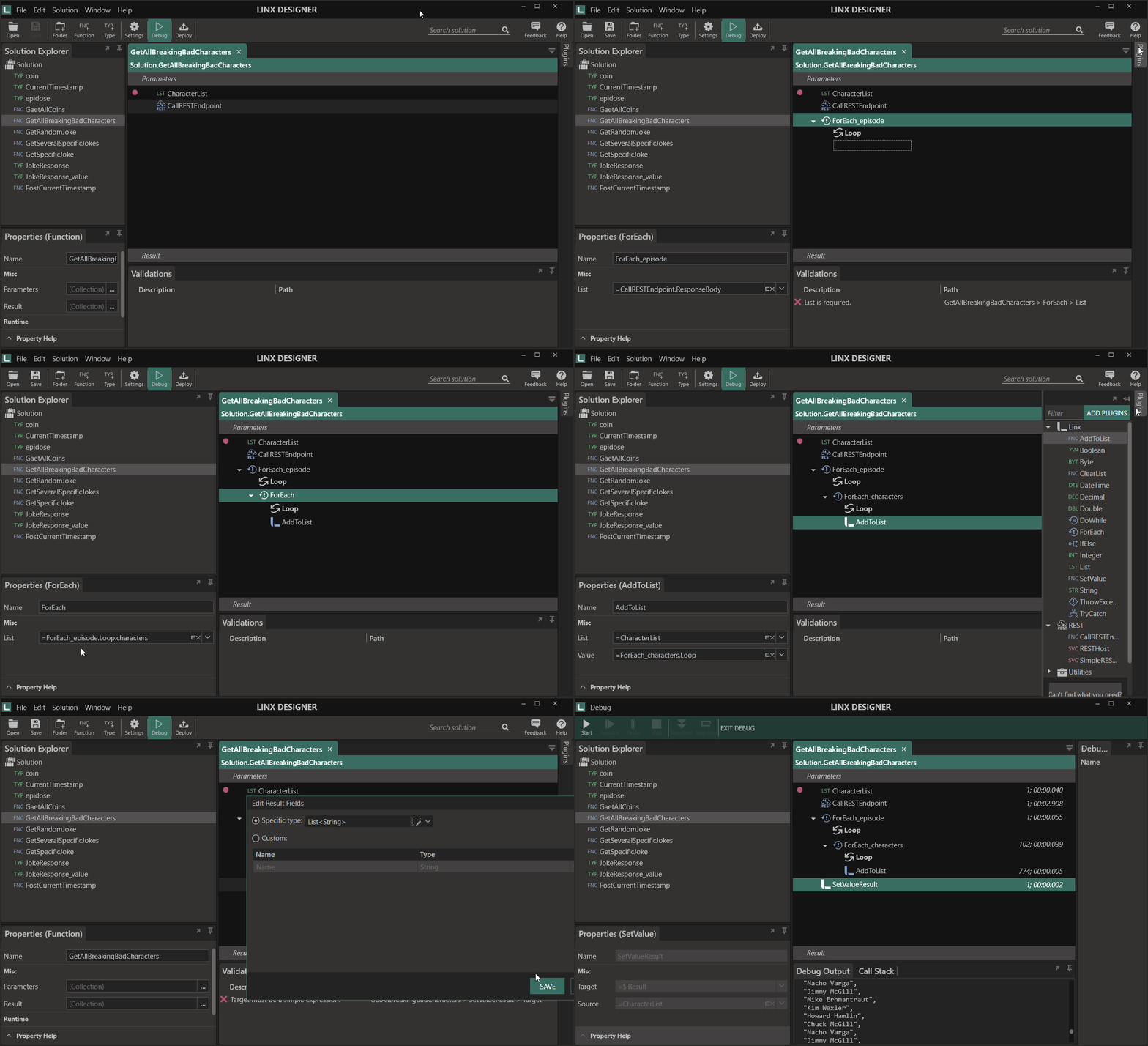
1. Create a new function and name it `GetAllBreakingBadCharacters`

2. Add a [ListTYP](https://linx.software/docs/reference/plugins/linx/content/list) and rename it to `CharacterList`.

3. Add a [CallRESTEndpointFNC](https://linx.software/docs/reference/plugins/rest/content/callrestendpoint) to the function.

4. Set the URL to `https://www.breakingbadapi.com/api/episodes`.

5. Copy the `Response Body` and Create or Import a new `Type` with the name of `episode`  
 ![Twenty57.Linx.Designer.UI_9zTqhmv7mI](https://community.linx.software/community/uploads/default/original/2X/5/5f5198f573d603416c5da23bb5c26964588a99ae.gif)

6. Set the Result type to `List<Project.episode>`.

7. Add a [ForEachFNC](https://linx.software/docs/reference/plugins/linx/content/foreach). Name it `ForEach_episode` and loop through the `Response Body` returned from the request.

8. Under for each `episode`, add another [ForEachFNC](https://linx.software/docs/reference/plugins/linx/content/foreach) and loop through the `characters` list of that iteration. Name it as `ForEach_characters`. Set the List to `=ForEach_episode.Loop.characters` .

9. Add [AddToListFNC](https://linx.software/docs/reference/plugins/linx/content/addtolist) under `ForEach_characters`. Set the **List** to `CharacterList` and **source** as `=ForEach_characters.Loop`.

10. Add a **SetValue** under `ForEach_characters`. Rename it to `SetValueResult`. Set **Target** as `$.Result` and **Source** as `CharacterList`  
 ![Twenty57.Linx.Designer.UI_O2cd6AoR1S](https://community.linx.software/community/uploads/default/original/2X/5/571ffc2d1a101cce8a3675fa9481389f24aa04be.gif)

## Sending content

So far, we’ve only dealt with how to make varying requests (`GET`) and receive the varying responses. What we haven’t touched on is sending content such is the case with `POST`, `PUT` and `PATCH`.

 **Note:**  
  
 The below section describes how to send an `application/json` request body with a request.

Typically, request bodies require data to be submitted in some structured form, most often this is `JSON`. Examples of these are typically provided on the target APIs reference documentation.

In order to send a `JSON` (or `XML`) request body, you must configure the correct Body format respectively.

For the Body, you need to reference a data object which will be serialized appropriately.

In order to send the correct data structure, you must create a TypeTYP which maps to the same fields and types of the expected request body structure.

Just like when working with response bodies, you are able to import the sample request body from the documentation site into Linx.

You are then able to work with this data structure locally.

To give you an idea, we are going to make a request to the [Unit Timestamp Converter API](https://unixtime.co.za/) (\* this API was built and is hosted using Linx).

The API returns date related information in the form of a Unix Timestamp.

To demonstrate using `POST` functionality, we are going to submit a response body to the endpoint below:

```http
https://showcase.api.linx.twenty57.net/UnixTime/tounixtimestamp

```

The `Request Body` will contain a field with the name `DateTime` and a string value containing a timestamp:

```auto
{
   "Datetime":"2019/02/11 13:38:00"
}

```

If successful, a `200 (OK)` response will be returned with the below `Response Body`:

```auto
{
   "UnixTimeStamp":"1549892280"
}

```

To implement the above functionality in Linx:

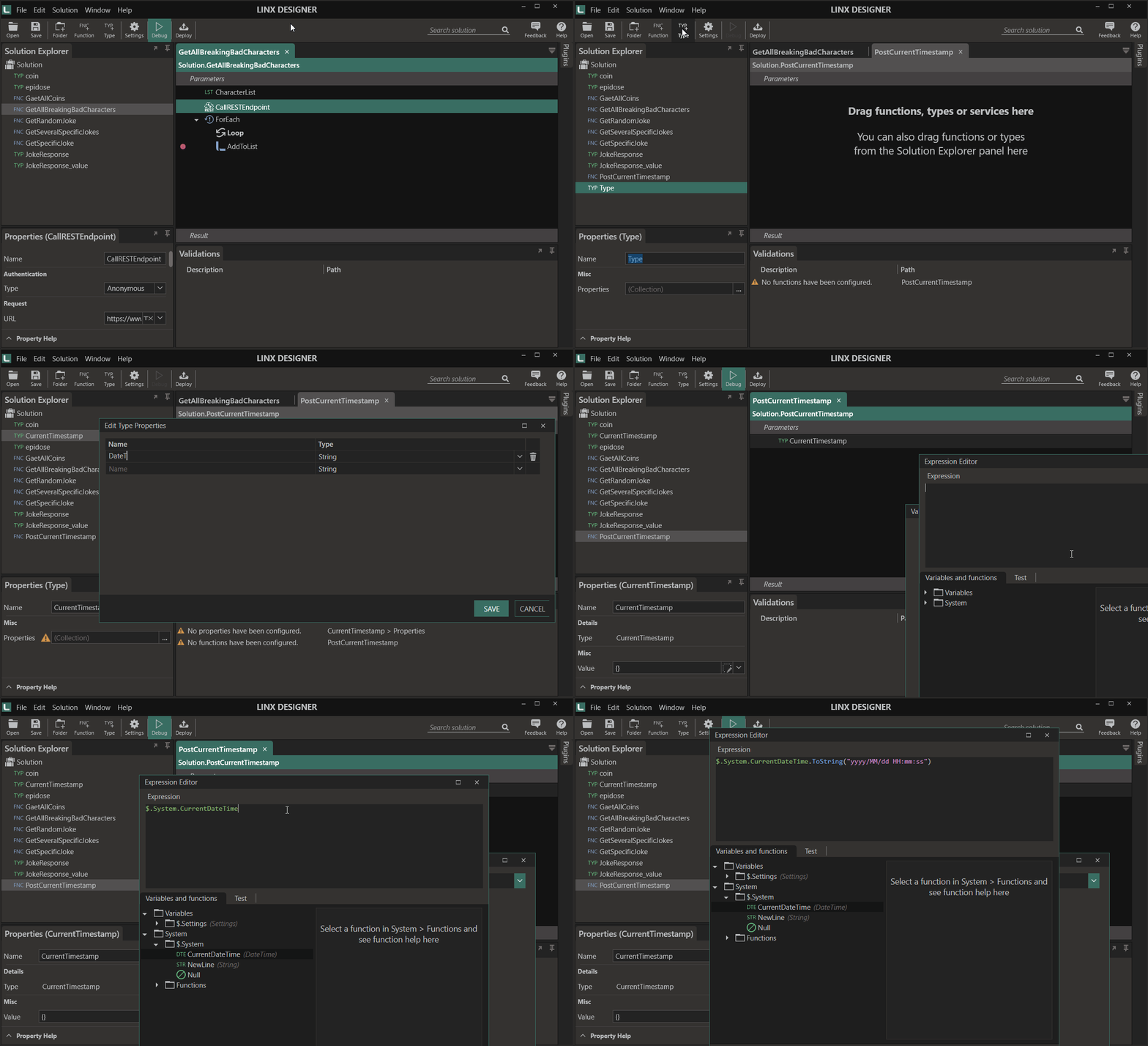
1. Create a new function and rename it `PostCurrentTimestamp`.

2. Create or Import a new TypeTYP with the name of `CurrentTimestamp`.

3. Add a field with the Name of `DateTime` and leave the Type as `String`.

4. Drag the CurrentTimestampTYP onto the PostCurrentTimestamp function.

5. Expand the local instance’s of the CurrentTimestampTYP Value.

6. For the Value of `DateTime`, we are going to create an expression to format the current timestamp into the correct time format.
![Twenty57.Linx.Designer.UI_myT74x29Ra](https://community.linx.software/community/uploads/default/original/2X/b/b8dc76654d2eee692bdbbe644322200518f3a685.gif)

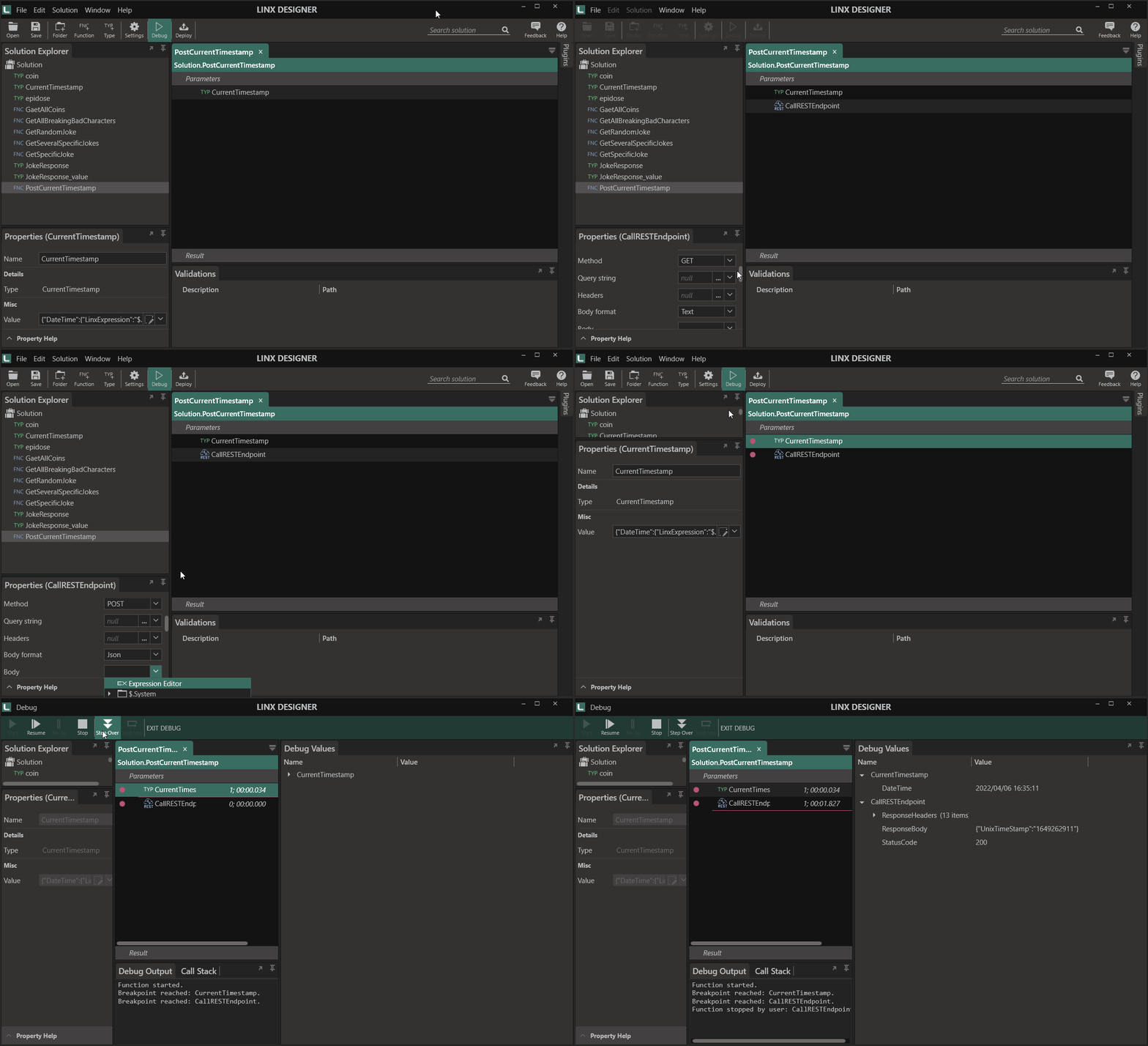
1. Now that we’ve created and set the local instance of our request body, we need to configure the  
[CallRESTEndpointFNC](https://linx.software/docs/reference/plugins/rest/content/callrestendpoint) to send the correct content.

2. Set the URL as:

3. Alter the Method to be `POST`.

4. Set the Body format as `JSON`.

5. For the Body , this will be the payload we want to submit, in our case it is the local instance of the CurrentTimestampTYP.

Debug the function and note how the `Request Body` is submitted with the current date stamp.
![Twenty57.Linx.Designer.UI_RRQTPBSD7I](https://community.linx.software/community/uploads/default/original/2X/4/42251e15b08a945b2c6dff0924db781f042ae463.gif)

## Re-using data structures

The `Response Body` from the request above contains a single field with the name `UnixTimeStamp` and is of the type `String`. In order to parse the response body text for this field, we need to assign it to a TypeTYP. Our CurrentTimestampTYP is of the same structure , however the field names don’t match i.e. “DateTime” does not map to “UnixTimeStamp”, therefore if we used this it would not map correctly.

We could create a new TypeTYP and reference that, however that will just add more clutter to the Solution Explorer. Instead, we are going to map the fields returned in the response to the use the CurrentTimestampTYP

In Linx, you are able to map the `Response Body` to a TypeTYP using type mapping.

This is done using a [JSONReaderFNC](https://linx.software/docs/reference/plugins/json/content/jsonreader) .

A [JSONReaderFNC](https://linx.software/docs/reference/plugins/json/content/jsonreader) takes in a [StringTYP](https://linx.software/docs/reference/plugins/linx/content/string) and has an Result of a TypeTYP. You are able to map fields that appear in the string to the TypeTYP.

In our case, we are going to read the `Response Body` string.

The field “UnixTimestamp” will be parsed and its value mapped to the CurrentTimestampTYP.

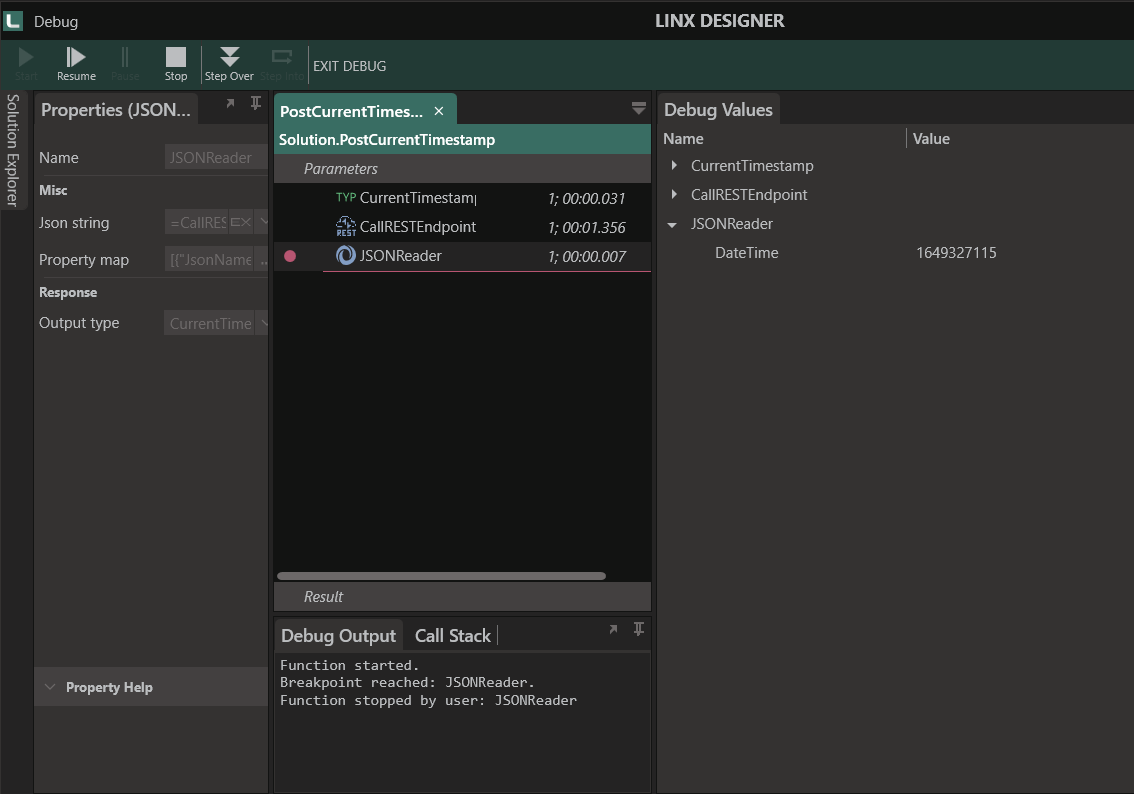
1. Add the [JSONPLG](https://linx.software/docs/reference/plugins/json/overview) .

2. Add a [JSONReaderFNC](https://linx.software/docs/reference/plugins/json/content/jsonreader) to the **PostCurrentTimestamp** function.

3. Set the Json string as the `CallRESTEndpoint.ResponseBody`.

4. For the Output type, reference `Project.CurrentTimestamp`.  

5. Expand the Property map editor.

6. The Name is the field in the text that the value will be extrated from , in this case `UnixTimestamp`.

7. The corresponding Property Name will be `DateTime`.  

When you debug the function now, note how the **JsonReader** correctly maps the field:
 ![Capture3](https://community.linx.software/community/uploads/default/original/2X/3/32febe7626605d5ac1b2dfcb063b52af81632599.png)

To use this parsed value, you just need to reference the output of the **JsonReader** in subsequent functions like:

```auto
= "The current Unix timestamp is " + JsonReader.DateTime

```

---

<div class="post-metadata">

### Author: ![Abdul\_Haseeb](https://community.linx.software/community/user_avatar/community.linx.software/abdul_haseeb/32/1294_2.png) [@Abdul\_Haseeb](https://community.linx.software/community/u/Abdul_Haseeb)
#### Post date: [March 26, 2022, 3:18pm UTC](https://community.linx.software/community/t/tutorial-consuming-rest-apis/484/3 "2022-03-26T15:18:12Z")

</div>

Hi, I wanted to ask how to import this sample into Linx. It is only accepting .solution extension and not .lsoz extension.

Thanks

---

<div class="post-metadata">

### Author: ![Dawie\_Botes](https://community.linx.software/community/user_avatar/community.linx.software/dawie_botes/32/288_2.png) [@Dawie\_Botes](https://community.linx.software/community/u/Dawie_Botes)
#### Post date: [March 28, 2022, 8:06am UTC](https://community.linx.software/community/t/tutorial-consuming-rest-apis/484/4 "2022-03-28T08:06:13Z")

</div>

Hi Abdul\_Haseeb,

Welcome to the Linx Community.

The sample file on top was created in Linx 5. Linx 6 was just recently launched, and in a month or so will be able to also read Linx 5 solutions, however, in the meantime, you don’t need the solution file if you’re planning to follow this guide, as the guide takes you step-by-step on how to create your own solution.

But, I will take the solution and recreate it for you in Linx 6. Will post it here when I’m done.

Best regards,  
Dawie

---

<div class="post-metadata">

### Author: ![Dawie\_Botes](https://community.linx.software/community/user_avatar/community.linx.software/dawie_botes/32/288_2.png) [@Dawie\_Botes](https://community.linx.software/community/u/Dawie_Botes)
#### Post date: [March 31, 2022, 2:42pm UTC](https://community.linx.software/community/t/tutorial-consuming-rest-apis/484/5 "2022-03-31T14:42:53Z")

</div>

For reference, the Linx 6 solution was added to this post.

---

<div class="post-metadata">

### Author: ![Abdul\_Haseeb](https://community.linx.software/community/user_avatar/community.linx.software/abdul_haseeb/32/1294_2.png) [@Abdul\_Haseeb](https://community.linx.software/community/u/Abdul_Haseeb)
#### Post date: [April 3, 2022, 3:21pm UTC](https://community.linx.software/community/t/tutorial-consuming-rest-apis/484/6 "2022-04-03T15:21:09Z")

</div>

Much Appreciated, Thanks
