Linx expressions are a powerful tool for validation, data manipulation, and implementing logic within your solutions. In this post, we’ll explore some useful tips and tricks to help you make the most of Linx Expressions. The goal is not to cover every available expression, but to equip you with practical knowledge so you can confidently explore and utilize expressions in your own projects.
Get to Know the Expression Editor
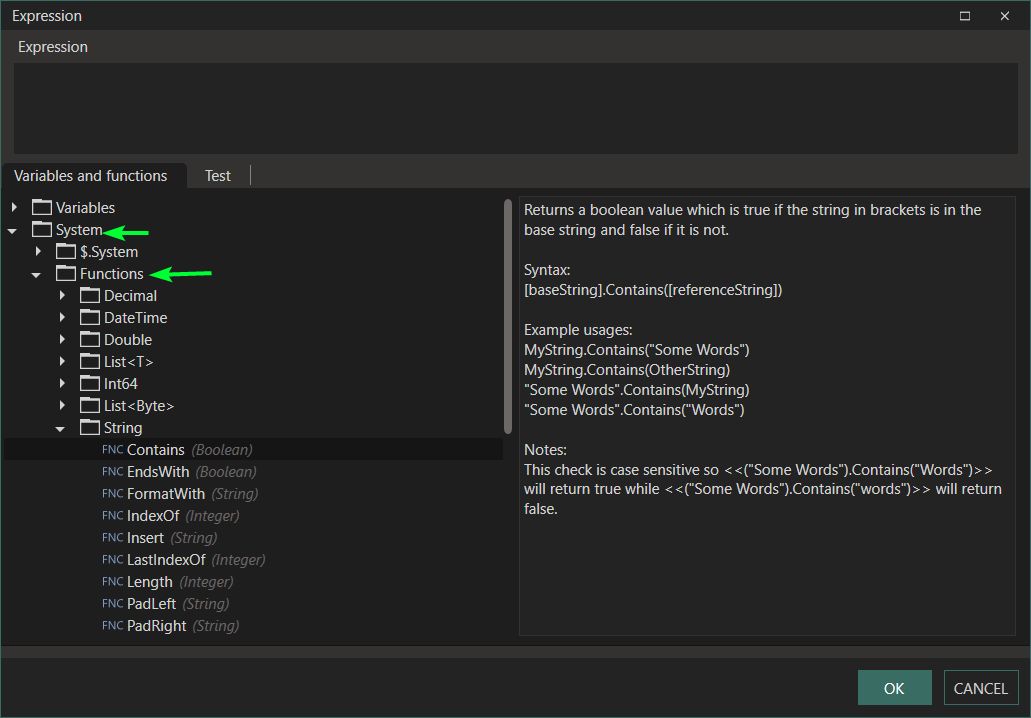
The first step to mastering Linx expressions is understanding the Expression Editor. This editor is your workspace for writing and testing expressions. It provides helpful documentation and tooltips for each function, making it easier to learn and apply them effectively.
 Expression Editor Documentation
Essential Expression Functions
Linx includes a variety of built-in expression functions that can streamline your development. Here are a few key examples:
Date ToString
The ToString function converts a DateTime value to a string using your specified format.
Example:
$.System.CurrentDateTime.ToString("yyyy-MM-dd HH:mm:ss.fffffff")
- To format a date like
2025/10/01:
MyDateTime.ToString("yyyy/MM/dd")
- To extract only the time, for example
08:00:
MyDateTime.ToString("HH:mm")
For more details, check the documentation within the Expression Editor.
String FormatWith
When building strings, you might be tempted to concatenate values:
"Good day " + Name + " " + Surname + ", please find attached your policy document (for policy number " + PolicyNumber + "). If you have any queries, please get in touch with your account manager " + AccountManager + "."
A cleaner and more flexible approach uses FormatWith, which replaces {0}, {1}, etc. in your string with the corresponding parameters:
"Good day {0} {1}, please find attached your policy document (for policy number {2}). If you have any queries, please get in touch with your account manager {3}." .FormatWith(Name, Surname, PolicyNumber, AccountManager)
Remember: Indices start at 0.
Filtering Lists with Where
Linx provides list functions like Where for filtering items based on conditions.
ListOfPersons.Where(person => person.Name == "John")
Understanding Linq-style Expressions
The syntax inside the Where function is similar to Linq (Language Integrated Query) in C#. Here’s how to interpret it:
- The part before the
=>(e.g.,person) is a variable representing each item in your list. - After the
=>, you write a condition that returnstrueorfalse. - The function returns items for which the condition is
true.
Example:
Given a list:
["A", "B", "C", "D_test", "E", "F_test"]
To get all items containing "test":
List.Where(a => a.Contains("test"))
Explore Other Functions
There are many additional functions within the Expression Editor that can help streamline your logic and processes. Take time to explore them!
Conditional Expressions
Often you’ll use an IfElse function in Linx for validations or logic. However, for simple cases, conditional expressions offer a concise alternative.
Format:
{condition} ? {value if true} : {value if false}
Example:
When we want to check if a value is positive or negative, typically it may look like this:
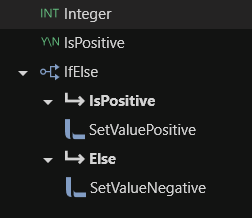
Instead of using an
IfElse statement to check if a number is positive, this can be done in a signle expression:
Integer >= 0 ? true : false
You can also perform actions, as an example giving a specific output based off a test code, if the code is flagged as a test code, we want to see the value TEST else the output must be the code:
MyCode == "2529" ? "TEST" : MyCode
Conditional expressions can be nested for more complex logic:
MyCode == "2529" ? (MySecondCode == "0002" ? "UserTEST" : "TEST") : MyCode
This checks if MyCode is "2529". If so, it checks if MySecondCode is "0002" to return "UserTEST", otherwise "TEST". If MyCode isn’t "2529", it just returns the original code.
You can also combine conditional expressions with other Linx expression functions.
Read more here: Conditional statements within expressions
Using System Classes in Expressions
You can use C# System classes within your Linx expressions—helpful for advanced operations like math calculations.
Example:
Calculate the square root:
#.System.Math.Sqrt(MyValue)
- Access these using
#.Systemor#.System.IO. - Note: Only
SystemandSystem.IOnamespaces are available for external use.
Caution: Functions from these namespaces aren’t supported by the Linx team. Use them carefully and at your own risk.
Handling Null Objects
Sometimes you’ll encounter the error:
Object reference not set to an instance of an object.
To avoid this, use the null-conditional operator (?.) to safely check for nulls.
Example:
=$.Parameters.MyInput?.A
By adding ? after the object, Linx checks if the object exists before accessing its properties. If it doesn’t exist, the result is null instead of an error.
For more on this, read the full post on Handling Nulls in Linx.
Wrapping Up
Linx expressions are a versatile feature that can significantly improve your solutions. Start experimenting with these tips, explore the Expression Editor’s function library, and soon you’ll be writing more efficient and maintainable Linx solutions!